Employee HR files
The HR file holds everything payroll needs about an employee, and warns you before an ID, passport, labour card or contract expires.
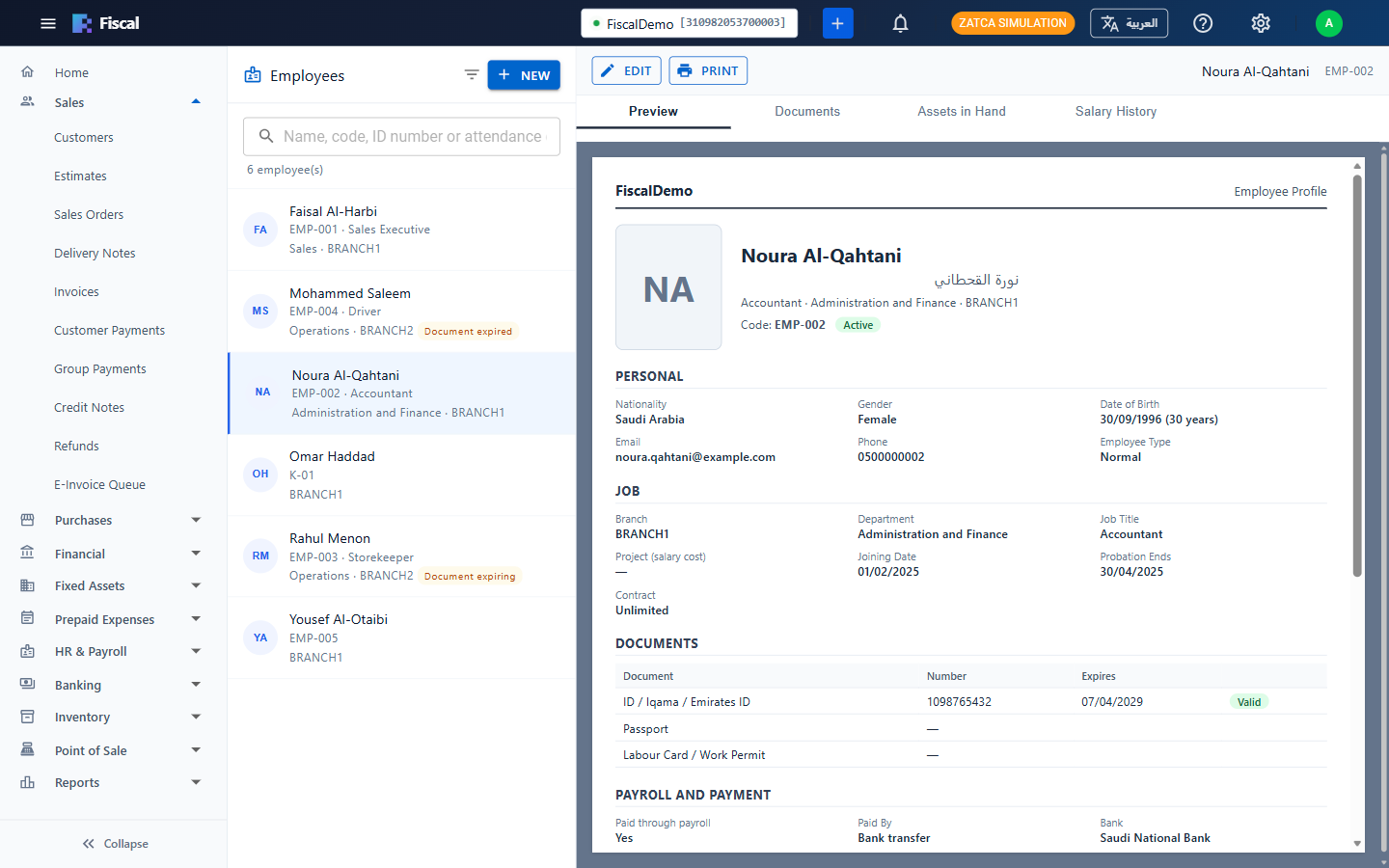
Open HR & Payroll›Employees. The employees of your branches are listed on the left, with their code, job title, department and branch. An employee with an expired document, or one expiring soon, is flagged Document expired or Document expiring. Search by name, code, ID number or attendance code. The filter button lets you choose a department, show In payroll only, or Include employees who left.
The employee center
Click an employee to see their details on the right:
- Preview: a one-page employee profile with their photo, personal details, job, documents, payroll and salary. Click Print to print it.
- Documents: scanned copies of the employee's papers. Choose the type when you attach one: ID / Iqama / Emirates ID, passport, labour card / work permit, visa, contract, certificate or other.
- Documents & Expiry: the employee's other documents with an expiry date, such as medical insurance, driving licence or visa, with their scans. You are warned before they expire, and you renew them here. See Documents and expiry alerts.
- Assets in Hand: company assets the employee holds, meaning fixed assets with this employee as custodian in the Asset register. You only see this tab if your plan includes fixed assets and you have the right to view them.
- Salary History: each salary structure, with the date it started.
The HR file
Click New, or select an employee and click Edit, to open the HR file. Employees added earlier in Settings (for example salespeople) appear here too; open them to fill in the HR file.
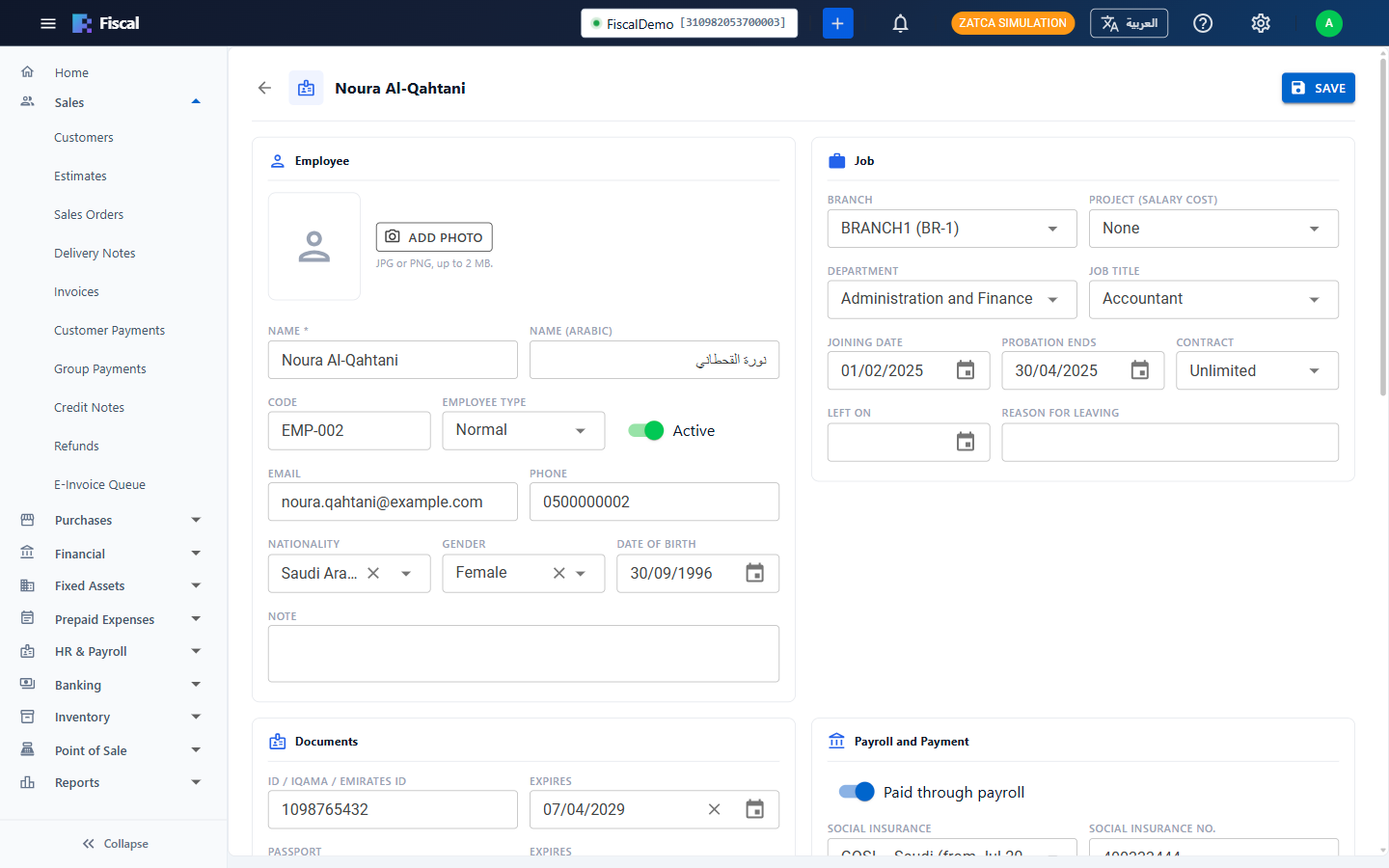
- Employee: photo, name in English and Arabic, code, type, contact details, nationality, gender and date of birth. Once the employee is saved, click Add Photo to upload a JPG or PNG of up to 2 MB, then Change Photo or Remove Photo. The photo appears on the printed profile.
- Job: Branch (the payroll the employee belongs to), the project their salary cost goes to, department, job title, joining date, probation end, contract (limited or unlimited, with its end date) and, when they leave, Left On and the reason.
- Documents: the ID / Iqama / Emirates ID, passport and labour card or work permit, each with its expiry date. In the UAE, the labour card number is the 14-digit MOHRE person ID used in the WPS file.
- Payroll and payment: Paid through payroll, the social insurance scheme and number, and how the salary is paid: bank transfer, salary card or cash, with the bank, IBAN and (UAE) routing code.
- Attendance: the Attendance Code, the employee's user ID on the attendance clock and in attendance Excel files, and their own working hours if they differ from the company's.
Salary structure
Enter the monthly amount of each fixed pay component, for example basic salary, housing and transport. Components worked out as a % of basic fill themselves in, and the Monthly gross is shown below.
Every structure has an Effective From date. For a new employee, use the joining date. For a raise, enter the new amounts with the date it starts: payrolls before that date keep the old amounts. Show salary history lists the earlier amounts.
Expiring documents
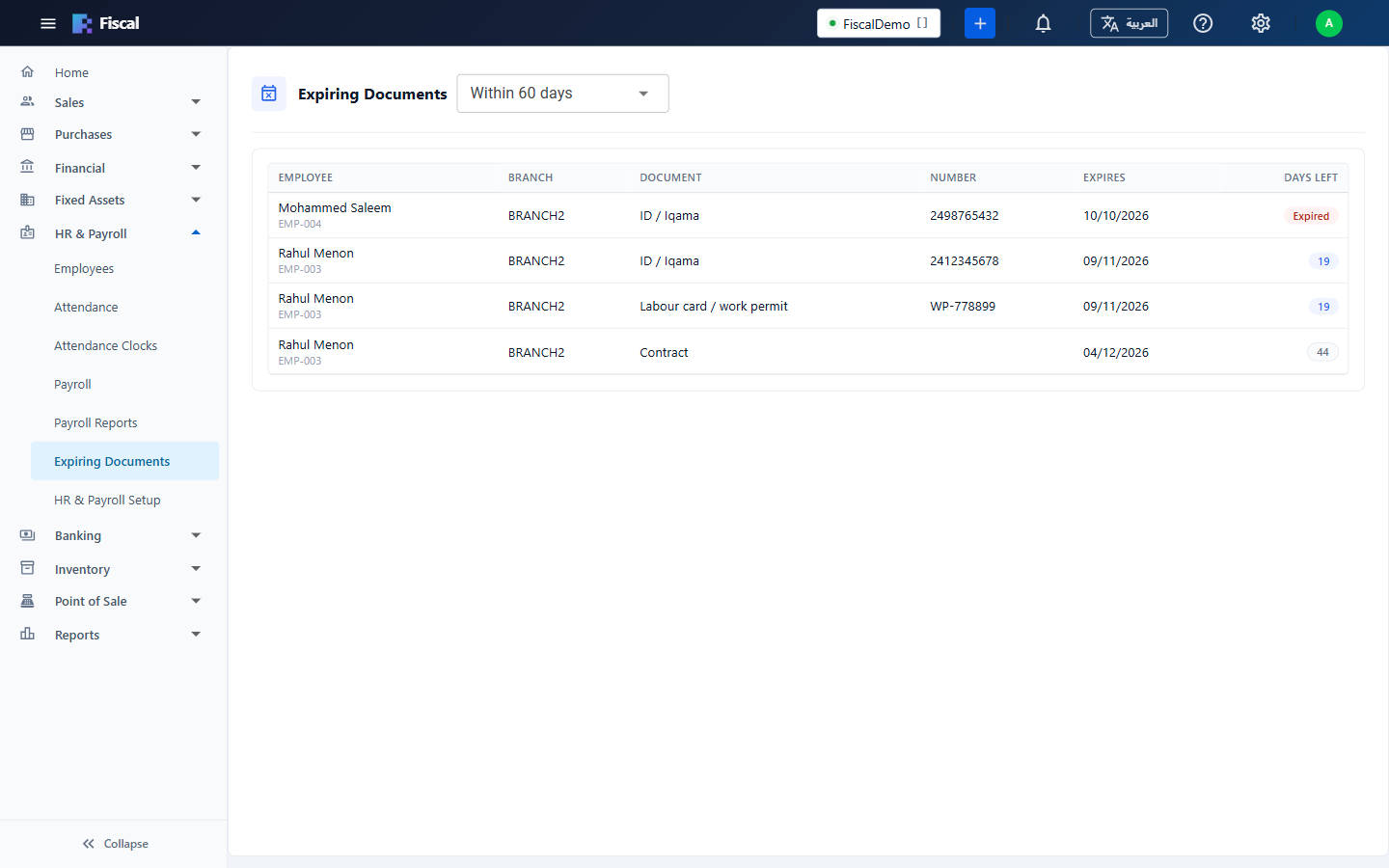
HR & Payroll›Expiring Documents lists the IDs, passports, labour cards and contracts that have expired or expire within the period you choose (30, 60 or 90 days, or 6 months), with the days left.
The list also has the employees' other documents (medical insurance, visa, driving licence...) from their Documents & Expiry tab, with Renew; HR file dates are renewed by editing the HR file. The same documents are on the bell in the top bar, in the Management Monitor and in the expiry email. See Expiring Documents.