
Attendance
Fiscal turns the punches from your attendance clocks or Excel files into days: present, absent, late, worked hours and overtime. The payroll can take its absences and overtime from here.
Open HR & Payroll›Attendance. Choose the dates (or This month / Last month), the branch and the department, and click Show.
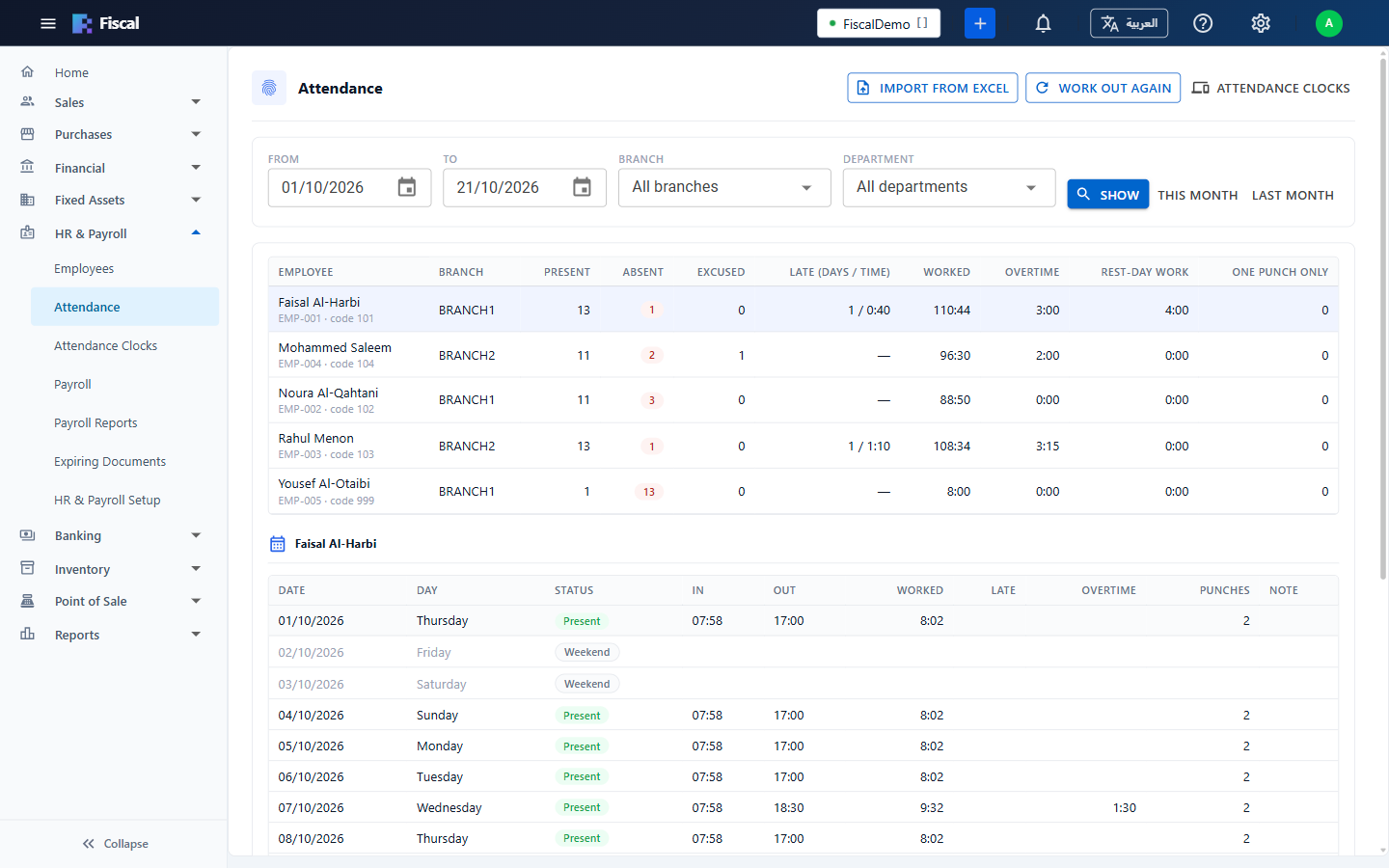
The sheet
Each employee with an attendance code has one row: days present, absent and excused, late days and time, hours worked, overtime, rest-day work, and days with only one punch. Click an employee to see their days below, each with its status, first and last punch, hours, lateness, overtime and number of punches.
How a day is worked out:
- The first punch of the day is the time in, the last is the time out. The break is taken off when the day is longer than 4 hours.
- A day is late when the time in is after the start of the day plus the minutes of grace.
- Overtime is the time after the end of the working day, in whole quarter hours; coming in early is not overtime. All work on a weekend or public holiday counts as rest-day overtime.
- A working day with no punch is absent, but only up to today. Days run from midnight to midnight, so a night shift that crosses midnight counts on two days.
Punches with an attendance code that no employee has yet are listed above the sheet. Give an employee that code in their HR file, and the punches move to them. Work Out Again works the days out again from the punches, for example after changing the working hours.
Correcting a day
Click a day to open it. It lists the day's punches and where each came from (the clock, Excel or entered by hand).
- Add Punch adds a forgotten punch; the day is worked out again from the punches.
- Correct the Day sets the status (for example Excused for approved permission or a site visit) and a note. A corrected day is kept as entered, even if more punches arrive, until you click Reset to the Punches. Excused days are not deducted from the salary.
Importing from Excel
Click Import from Excel. Choose what the file has:
- Punches: one row per punch, with the attendance code and the date and time, as ZKTeco and most clocks export them. Fiscal works out each day.
- One row per day: the attendance code, date, time in and time out (or a status). Each row is kept as the day, like a correction.
Say whether dates are written day first or month first, choose the file (up to 10 MB), and match its columns. Fiscal finds the header row and matches common column names by itself. Click Import: the result shows how many rows were new, already in Fiscal, or had problems. Importing the same file twice doesn't create duplicate punches.