
Business analysis
Business Analysis is the owner's view: how sales, profit and collections are going, compared with the previous period or last year, and against your targets.
Open Reports›Business Analysis. Your user group needs the right to view it.
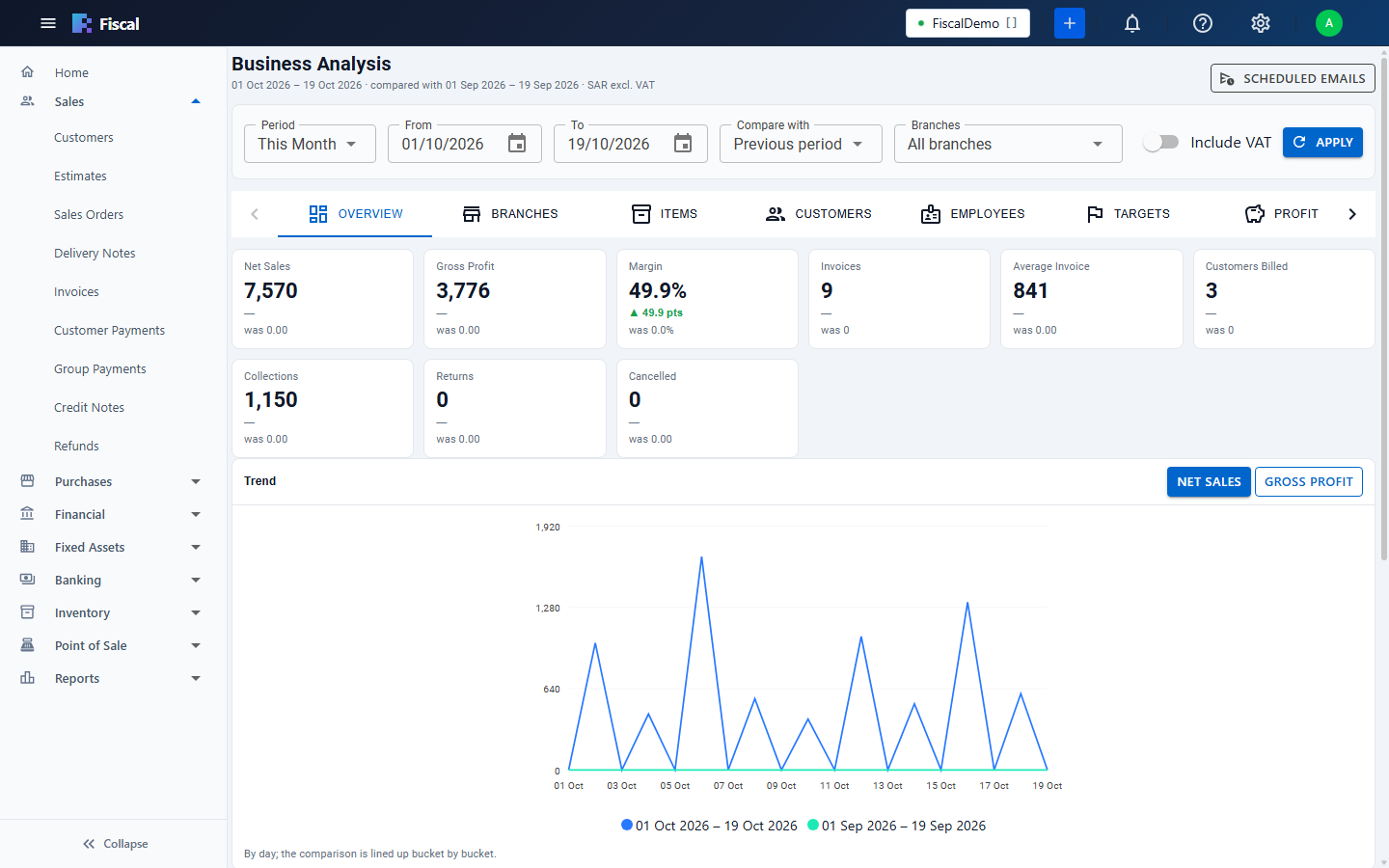
Choose what to look at
- Choose the Period, or a From and To date.
- Choose what to Compare with: the Previous period, the Same period last year, or No comparison.
- Choose the branches, and whether to Include VAT.
- Click Apply.
The tabs
| Tab | What it shows |
|---|---|
| Overview | Net sales, gross profit, margin, invoices, average invoice, customers billed, collections, returns and cancellations, with the change. A trend chart, the sales mix by category, top items, top salespeople, cancellations by reason, and sales by branch. |
| Branches, Items, Customers, Employees | Sales broken down each way, with the comparison. The Customers tab includes customer retention: how many of last period's customers bought again, and who stopped. |
| Targets | Net sales and gross profit against the monthly targets you set (see below). |
| Profit | Income, gross profit, operating expenses, operating and net profit, net margin, the trend of income against expenses, and expenses by account. The same figures as the Profit and Loss report. |
| Purchases | Net purchases, bills, vendors and returns, with the top purchases. |
| Receivables | Overdue amounts, collections, average days to collect, days sales outstanding, the receivables trend, ageing, the largest debtors, and collections by salesperson. |
| ABC | Items or customers ranked into A, B and C classes by their share of sales: the few that make most of your sales, and the many that make little. |
| Pivot | Your own table: choose what goes in the rows and the columns (for example branch by month, or category by salesperson). |
Most tables can be downloaded with Excel.
Sales targets
On the Targets tab, click Edit targets. Choose the year and enter the net sales and gross profit target for each month, or use Spread a year total to divide a yearly amount over the 12 months. Targets are on the same basis as the analysis (without VAT unless Include VAT is on). Months only partly in the period are pro-rated by days.
Scheduled summary emails
Click Scheduled emails, then New schedule:
- a Name, and whether amounts include VAT;
- the Frequency: Daily (yesterday), Weekly (last Mon–Sun) or Monthly (last month), the day it is sent on, and the time;
- the Recipients and the branches.
The email is sent through the company's email account (see Email setup and templates) and only shows the branches you can see. Send now sends it straight away.