
Assembly requests
An assembly request asks the kitchen to produce an item by a target date. The kitchen sees it on its dashboard, with the materials it needs, and turns it into an assembly when it starts.
Open Inventory›Assembly Requests. A request doesn't move any stock or post anything to the accounts. The assembly made from it does that.
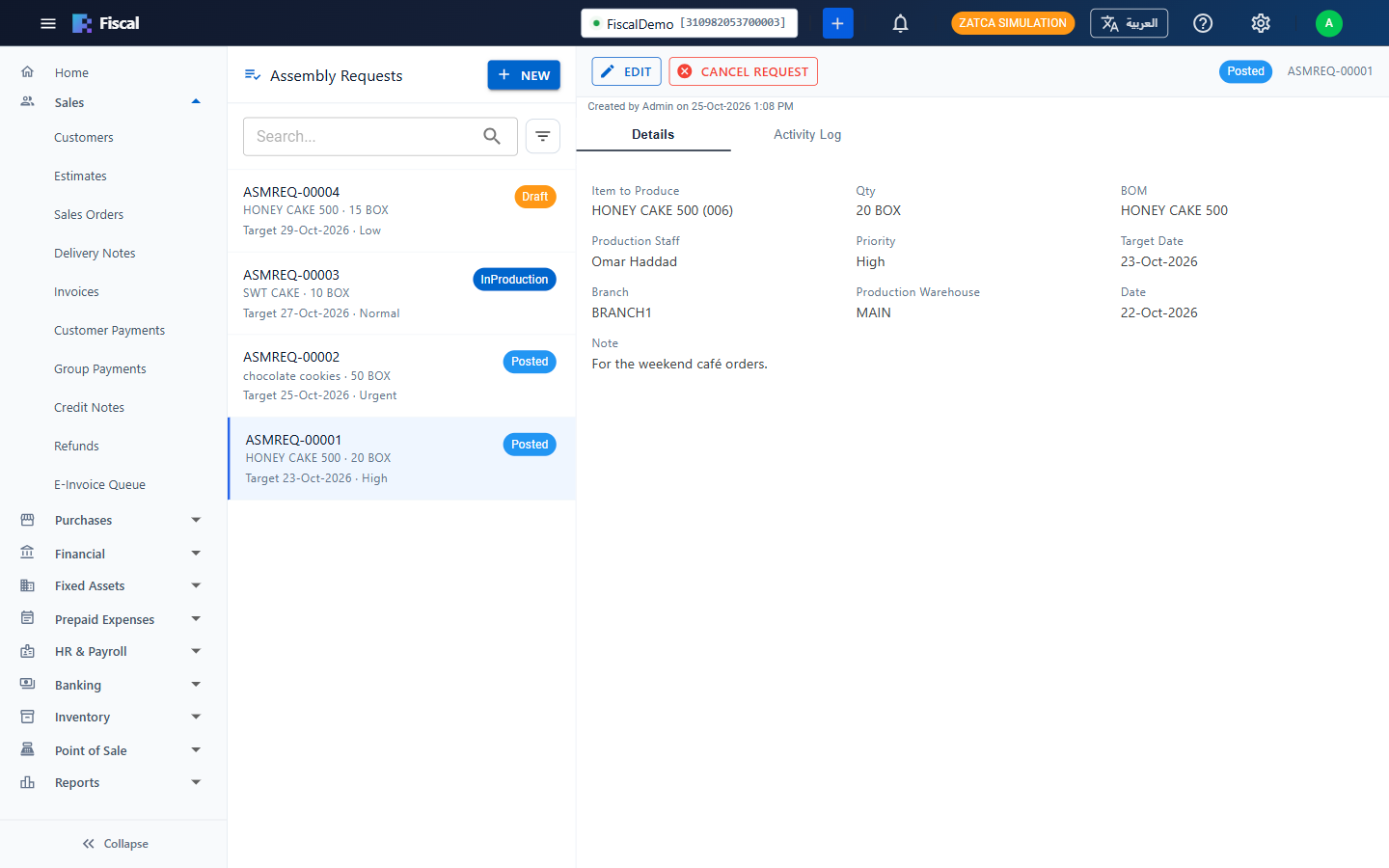
Create a request
- Click New.
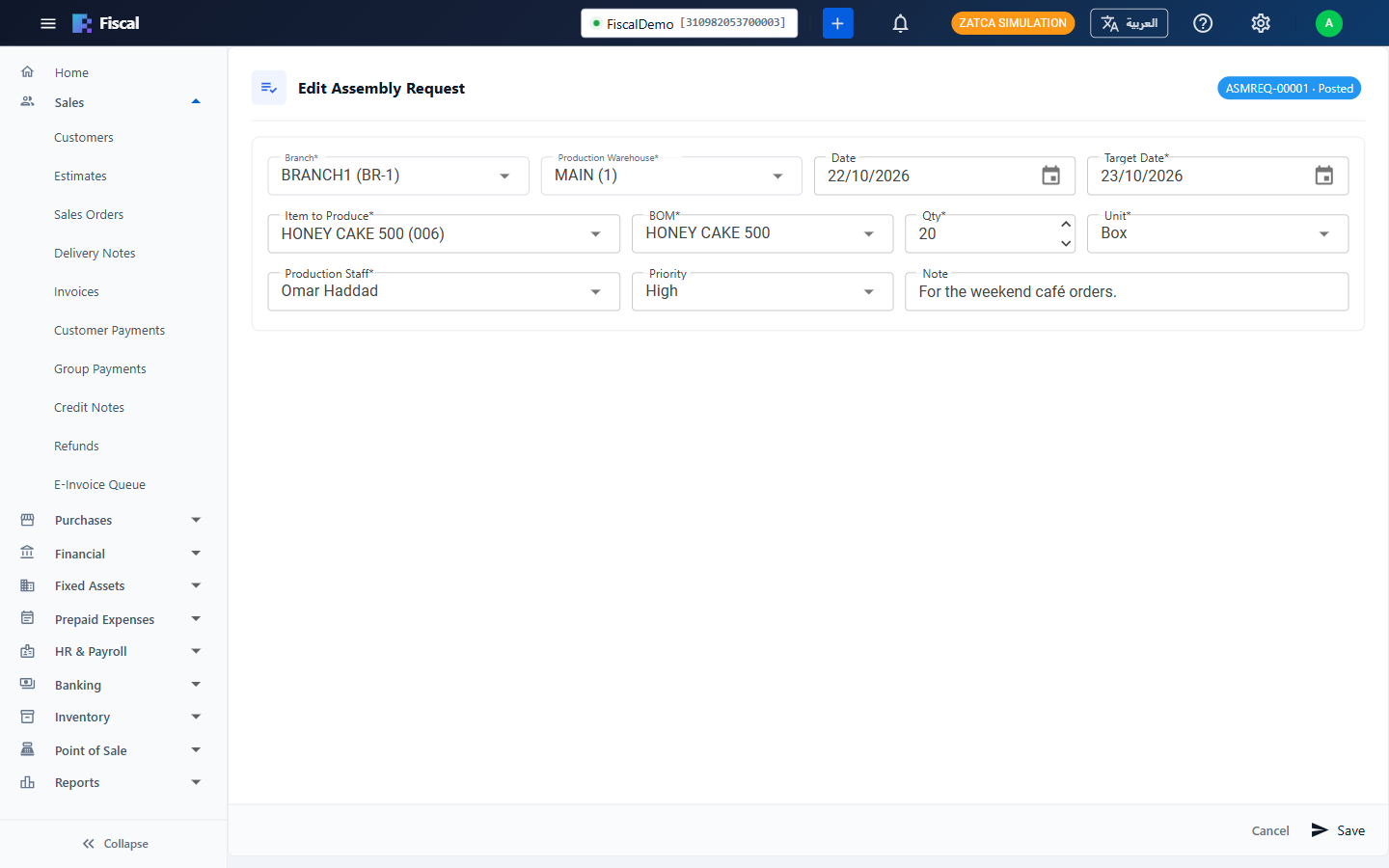
- Choose the Branch and the Production Warehouse, the kitchen that will produce the item. Only that kitchen sees the request.
- Set the Date and the Target Date, the day it should be ready.
- Choose the Item to Produce. Its production BOM is selected. If it has several, choose one. (If it has none, create one first: see Bills of materials.)
- Enter the Qty and the Unit.
- Choose the Production Staff, an employee whose type is Kitchen Staff (see Employees and projects), and the Priority: Low, Normal, High or Urgent. Add a Note for the kitchen if needed.
- Click Post to kitchen, or Save as draft to send it later.
Each request is for one item. To ask for several items, make one request for each.
Statuses
| Status | Meaning |
|---|---|
| Draft | Saved but not sent. The kitchen doesn't see it yet. |
| Posted | Sent to the kitchen and waiting to be started. |
| InProduction | The kitchen made a draft assembly from it. |
| Produced | That assembly was completed. The request is done. |
| Cancelled | Cancelled with a reason. The kitchen no longer sees it. |
You can edit a request while it's a draft or posted. A posted request can't go back to being a draft. If the assembly made from a request is cancelled, or its draft is deleted, the request goes back to Posted and the kitchen sees it again.
In the kitchen
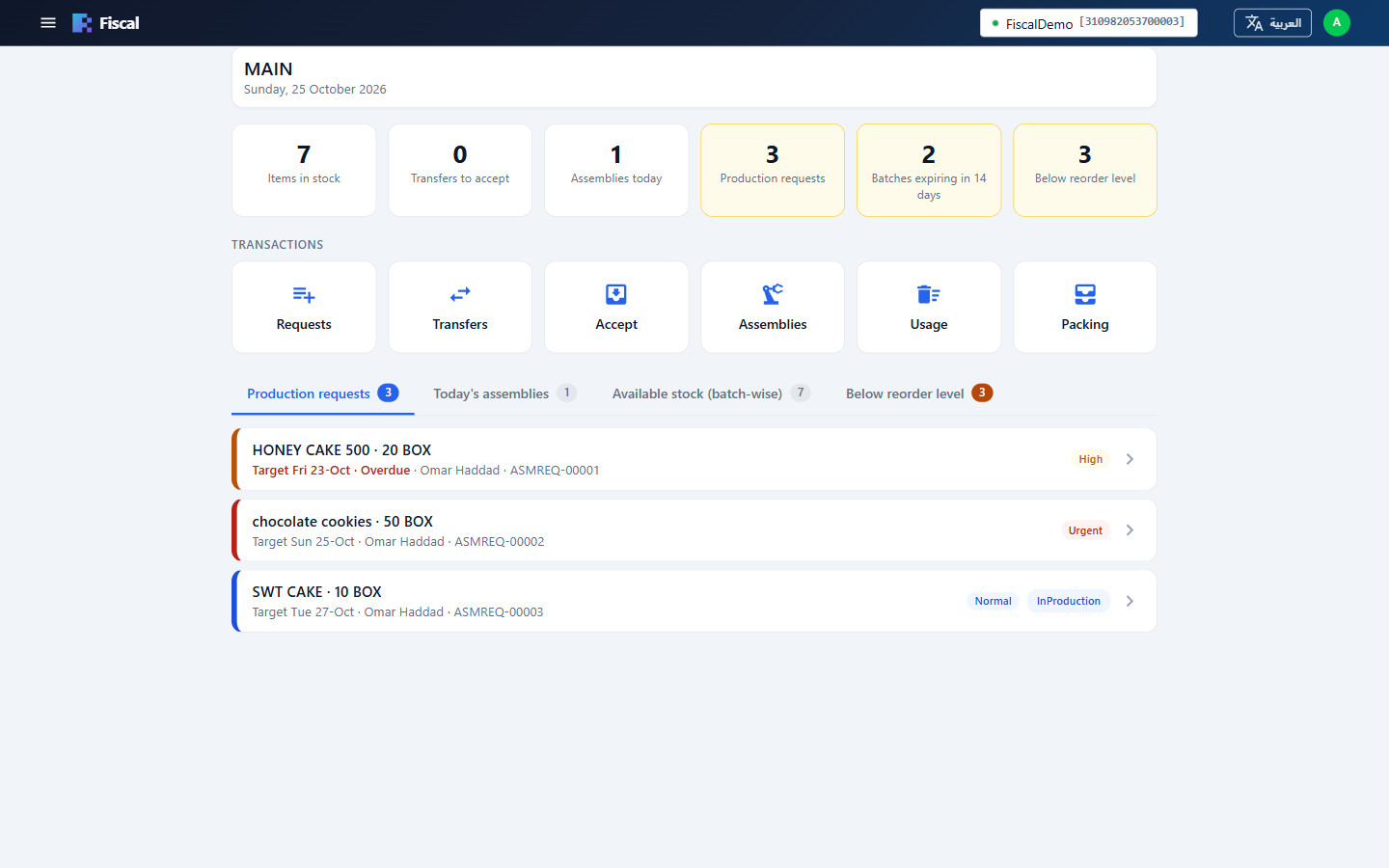
The kitchen dashboard has a Production requests tab. It lists the posted and in-production requests for the kitchen's warehouse, earliest target date first. The colour on the left shows the priority, and a request past its target date says Overdue. When there are open requests, this tab opens first.
Tap a request to see its details and the Raw materials required for the quantity. Each material shows how much is in each warehouse of the branch. The production warehouse is marked ★, and a quantity in red means there isn't enough there for this request.
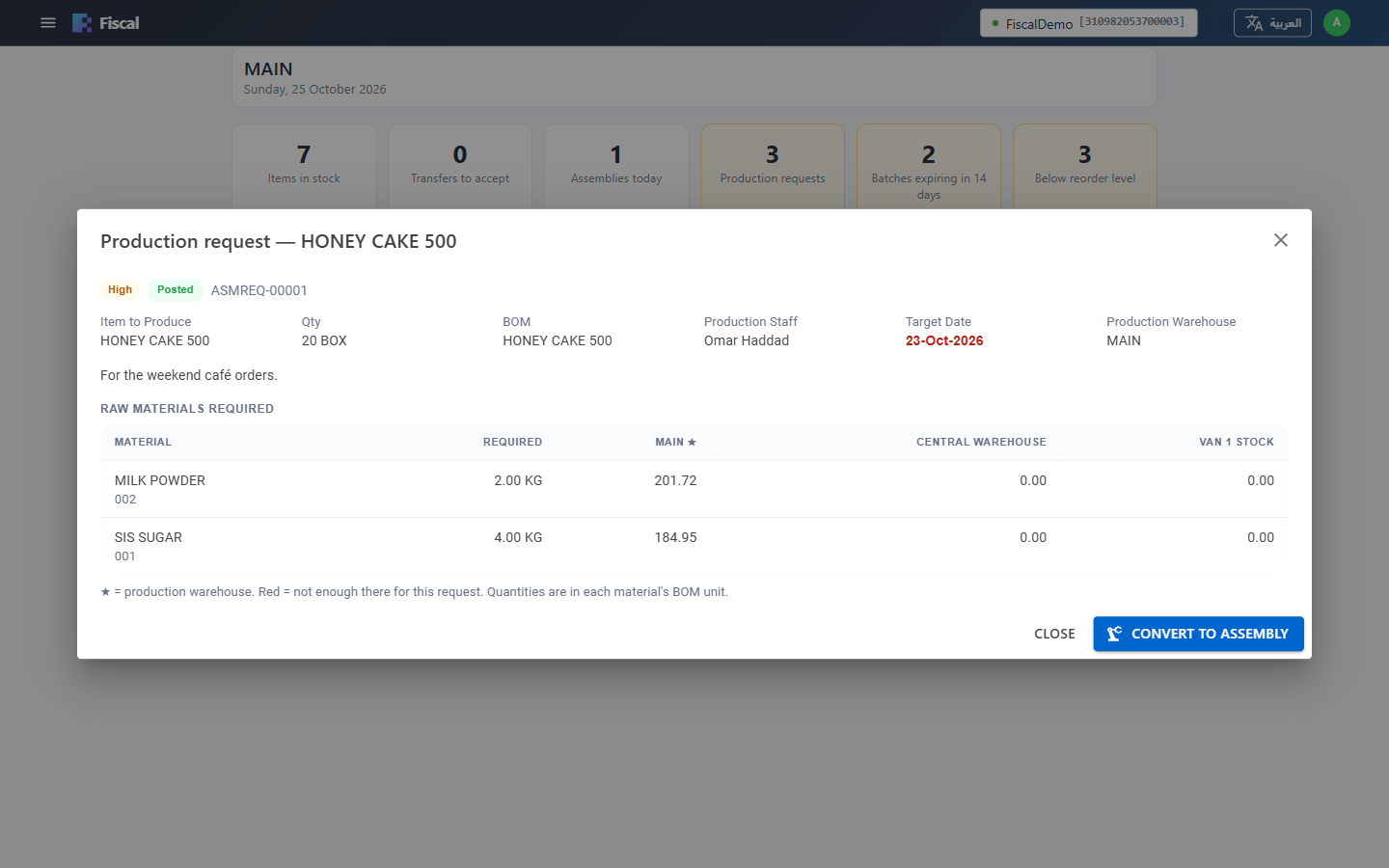
Tap Convert to Assembly to start. The kitchen's assembly form opens with the item, BOM, quantity and production staff filled in from the request. Save it as a draft while you work (the request becomes InProduction), or Assemble straight away (the request becomes Produced). The assembly must produce the requested item in the request's production warehouse; you can still change the quantity and the materials. To convert a request, the user needs the Create right for Build Assembly. For a request that's already in production, the button opens its assembly instead.
Cancel a request
Select the request and click Cancel Request, then enter a reason. You can cancel any request that isn't produced yet. If the kitchen already has a draft assembly for it, the draft stays, but it's no longer linked to the request.
Follow-up and history
- The Activity Log tab of a request shows who posted, edited, converted or cancelled it, and when.
- The Management Monitor alert Assembly requests not produced by target date lists requests that are still Draft, Posted or InProduction after their target date, most overdue first.
Rights
Requests have their own Assembly Request right in User groups and rights: View, Create and Modify work as usual, and Delete allows cancelling.