
Branch and warehouse access
Rights decide what a user can do. Branch and warehouse access decides where: which branches' documents they see, and which warehouses' stock they can move.
Open Settings›Users›Users, select the user and open the Branch & Warehouse Access tab.
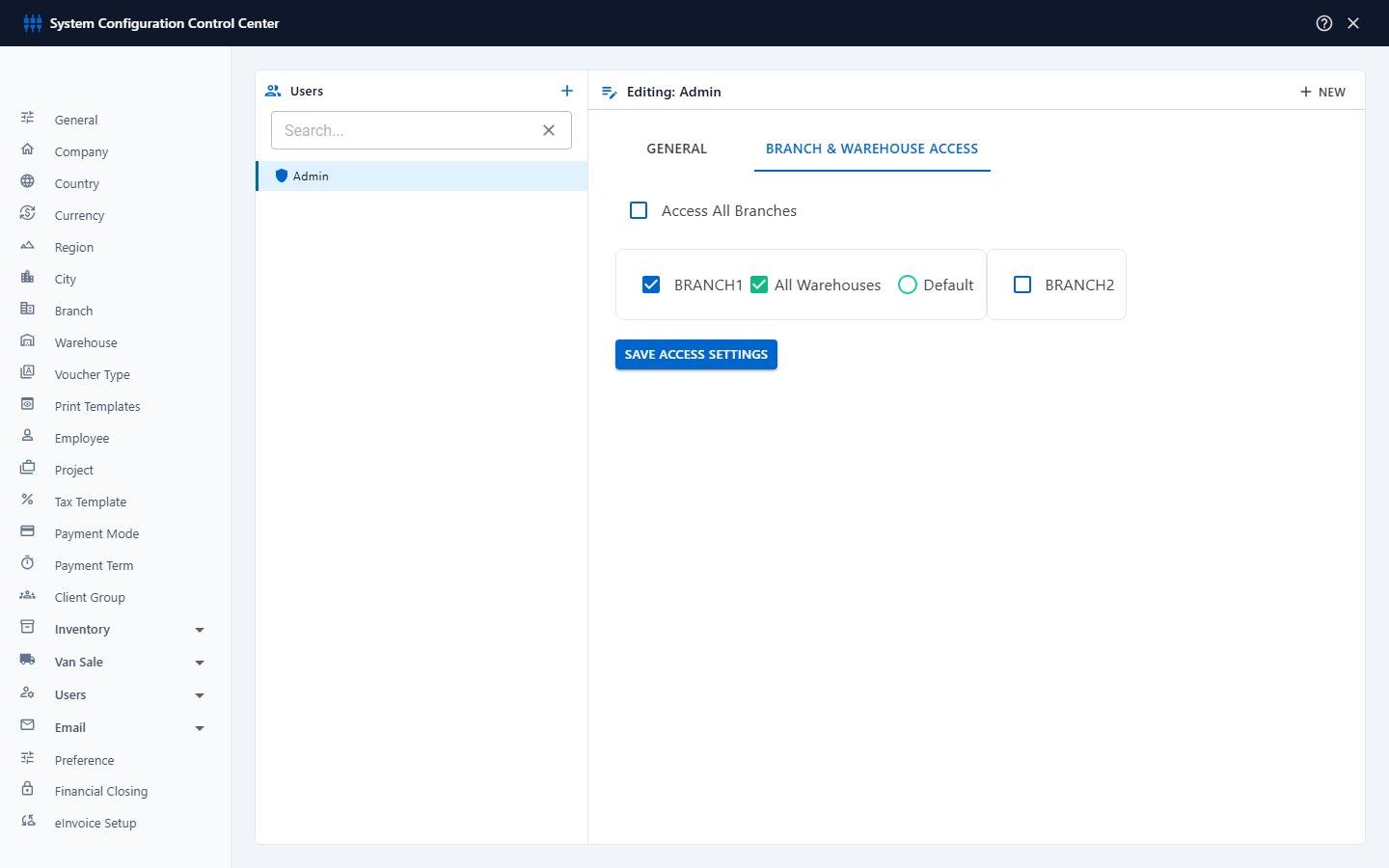
All branches
Tick Access All Branches for owners, managers and accountants who work across the whole company. They see every branch and every warehouse. Click Save Access Settings.
Selected branches and warehouses
- Untick Access All Branches. The company's branches are listed.
- Tick each branch the user works in.
- For each ticked branch, either tick All Warehouses, or leave it unticked, click Load warehouses... and tick only the warehouses the user may use.
- Choose the Default branch, and the default warehouse within a branch. New documents start with these, so the user rarely needs to change them.
- Click Save Access Settings.
What the user sees
- Document lists, the The dashboard and the reports only include the branches the user has access to.
- Branch and warehouse lists on documents only offer their branches and warehouses.
- Stock they can't access is not shown in their stock figures.
After you add a branch or a warehouse, remember to give access to the users who need it. Users with Access All Branches get it automatically.
Can't find what you need? Write to info@exlerithub.com or chat with us on WhatsApp.