
Chart of accounts
The chart of accounts is the list of every account your transactions post to. A new company comes with a standard chart, so you only add the accounts that are specific to your business.
Open Financial›Chart of Accounts to see the full chart as a tree, or Financial›Ledger Center to look up an account's balance and transactions.
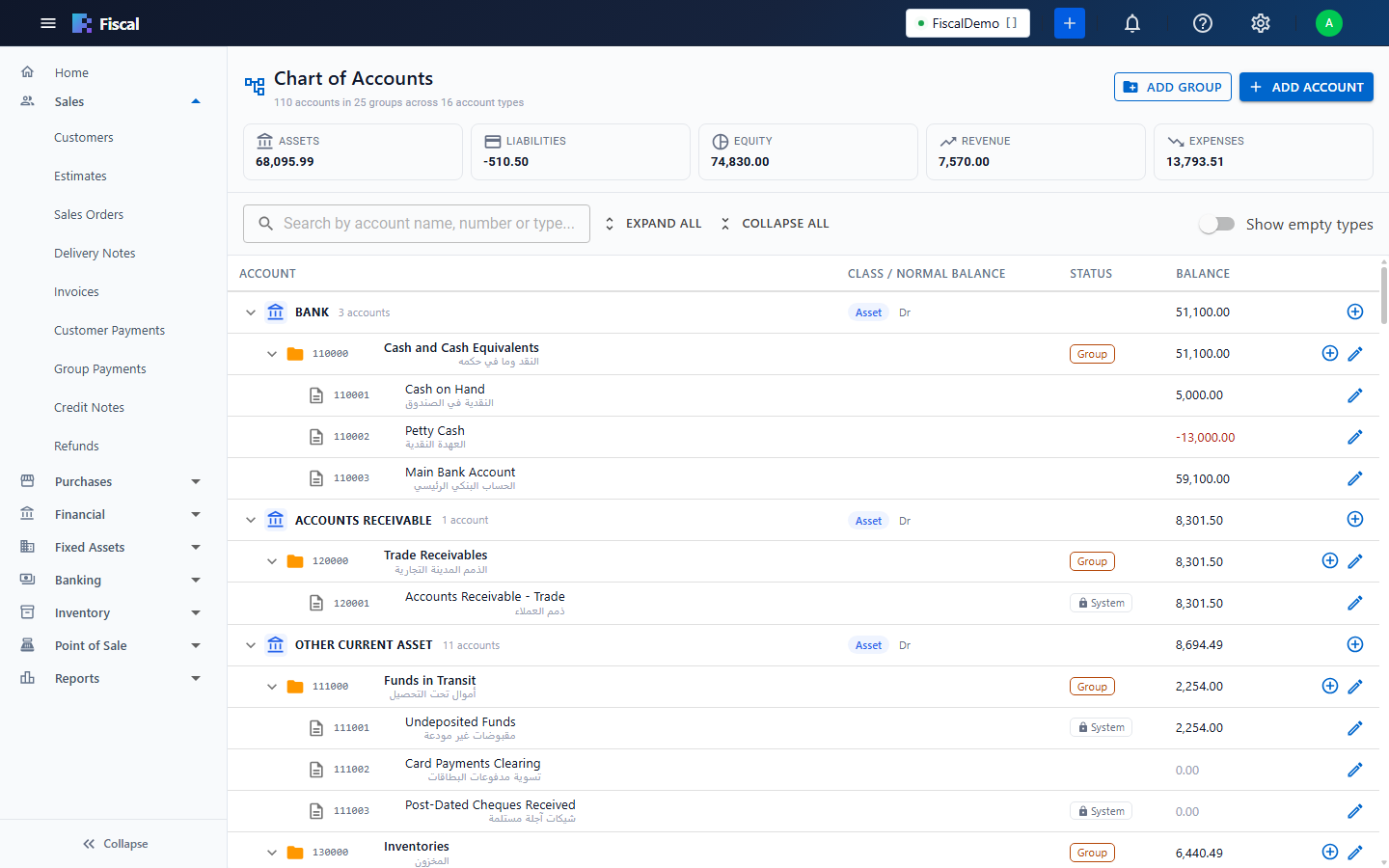
How the chart is organised
- Account types are fixed, for example Bank, Accounts Receivable, Income, Expense. The type decides where the account appears in the balance sheet or the profit and loss statement, and whether its normal balance is a debit or a credit.
- Groups collect accounts of the same type, for example Bank accounts or Office expenses. A group's balance is the total of the accounts under it. You can't post to a group.
- Accounts are what documents post to.
| Class | Account types | Normal balance |
|---|---|---|
| Assets | Bank, Cheque or Saving, Accounts Receivable, Other Current Asset, Fixed Asset, Other Asset | Debit |
| Liabilities | Accounts Payable, Credit Card Account, Other Current Liability, Bank Loan, Long Term Liability | Credit |
| Equity | Capital / Equity | Credit |
| Income | Income, Other Income | Credit |
| Expenses | Cost of Goods Sold, Expense, Other Expense | Debit |
Use Expand all and Collapse all to open the tree, and the search box to find an account by name, number or type. Tick Show empty types to also see types that have no accounts yet.
Add an account
- Click Add Account (or Add Group for a group).
- Choose the Account Type, then the Parent Group it belongs to, or none to place it at the top of the type.
- Fiscal suggests the next free Account Number (Code). Keep it, or type the number you use. Each number can only be used once.
- Enter the English name and, if you like, the Arabic or local name, and a description.
- Save.
Add several accounts at once
- Click Add Multiple Accounts.
- Choose the Account Type and the group they go Under. Every account in the list gets this type and group.
- Type the accounts in the rows (Number, Name, Regional Name, Description), or click Paste from Excel and paste those four columns, one account per line.
- Use Fill blank numbers with a Start number to number the rows that have no number.
- Save. Blank rows are ignored. All the accounts are saved together, or none of them if one row has a problem, and Fiscal tells you which.
System accounts
Accounts marked System are used by the default accounts. You can rename them, but their type can't be changed.
Change or delete an account
Click Edit on the account. An account that has transactions, or that is used in a setting (for example a tax template or a payment mode), can't be deleted.
The Ledger Center
The Ledger Center lists the account types on the left. Select a type to see its top-level accounts and groups with their balances, then select an account to see its ledger:
- the Opening Balance at the start of the date range and the Closing Balance at the end,
- every transaction in between, with its voucher number, date, branch, type, narration, debit and credit,
- Export to download the ledger.