
Customers
A customer is anyone you sell to. Their record holds the details that go on your invoices, the defaults for their documents, and everything they have bought and paid.
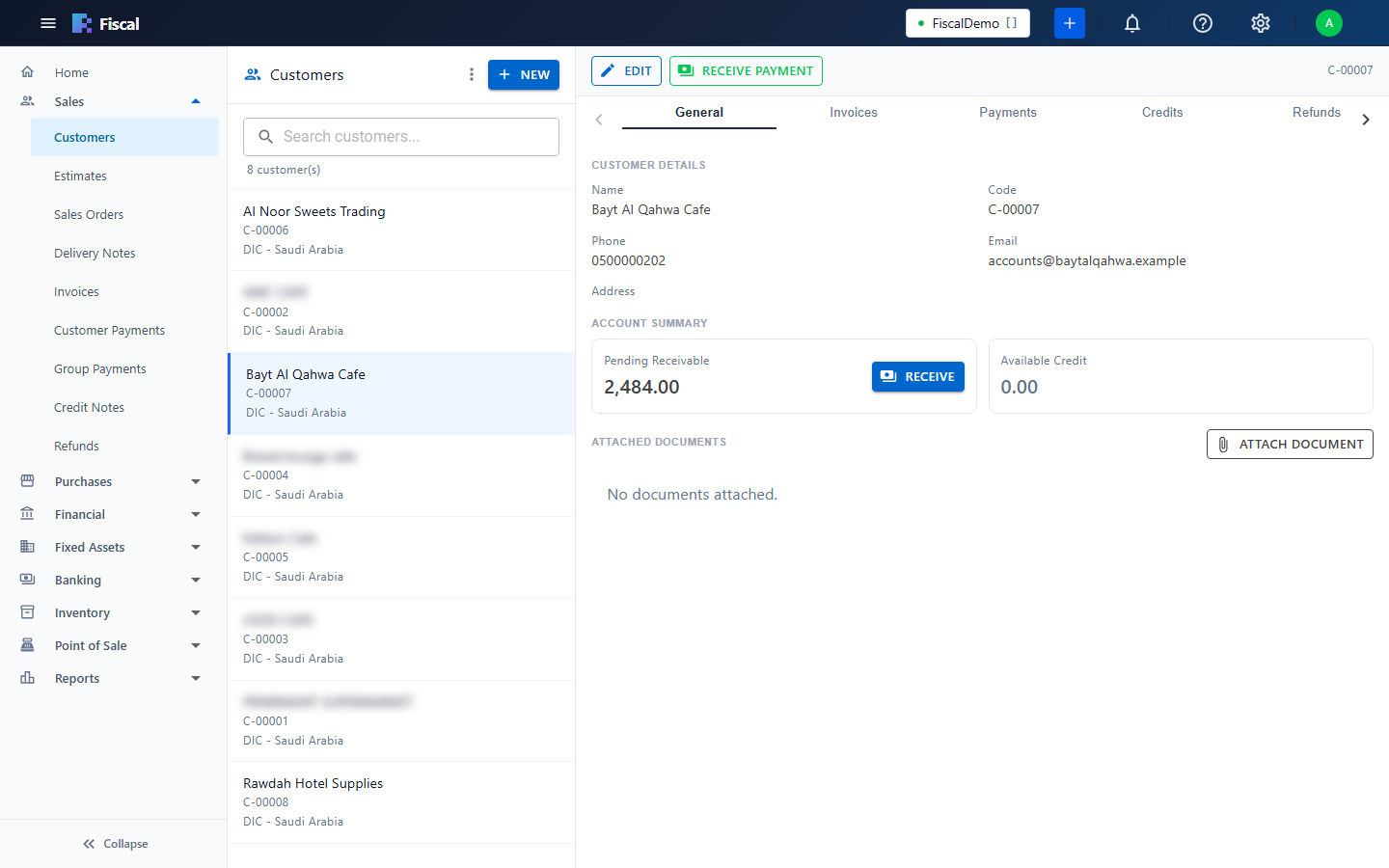
Open Sales›Customers. The customer center lists your customers on the left, and the selected customer's account on the right.
Add a customer
- Click New.
- Enter the Name. Leave the Code empty to get the next number automatically, or type your own.
- Fill in the tabs you need (see below) and save.
Main
| Field | What to enter |
|---|---|
| Company Name, Regional Name | The customer's legal name, in English and in Arabic (or another local language) for bilingual invoices. |
| Company Reg. No., VAT Reg. No. | The commercial registration and VAT numbers. For business customers in Saudi Arabia, the VAT number must be on the tax invoice. |
| E-Invoice Type | For ZATCA e-invoicing: Decide by VAT number (B2B when the VAT number is a valid Saudi one, otherwise B2C), B2B (standard) or B2C (simplified). It is the starting type of their invoices (see B2B and B2C invoices). B2B customers also need the full national address on the Address tab. |
| Contact Person, Phone Number, Email, Website | The email is used when you send them documents and statements. |
Address
The Country, City, and the national address (Building No, Street Name, District, Postal Code, Additional No.), plus a Billing Address and a Shipping Address. The GPS Location can be typed, picked on the map or pasted from a shared map link. It is used for van sales routes.
Additional
| Field | What it does |
|---|---|
| Currency | The currency their documents are in. Leave it as your base currency unless you invoice them in a foreign currency (see Currencies). |
| Default Payment Mode | Filled in on their new invoices. |
| Default Payment Term | Filled in on their new invoices and used for the due date (see Payment terms). |
| Default Salesman | Filled in on their estimates, orders, delivery notes, invoices and credit notes. Turn off Allow Change Salesman to keep this salesman on every document. |
| Client Group | Puts the customer in a group for group reports and group receipts (see Client groups). |
| Price List | Their special prices (see Price lists). Leave it at None (master price) for normal prices. |
| Credit Limit | How much the customer may owe. When the balance goes over it, the customer appears in the alerts of the Management Monitor. 0 means no limit. |
Opening balance
If the customer already owed you money when you started using Fiscal, enter it on the Opening Balance tab: the Branch, the As of Date (usually the day before you started) and the amount. A negative amount records an advance the customer paid you. Fiscal posts it to the journal, and you can receive payments against it like an invoice. See Opening balances.
Once payments have been made against an opening balance, it can't be changed here any more.
The customer center
Select a customer to see:
- Account summary: the Pending Receivable with a Receive button, and their Available Credit (from credit notes and advances), which you can Apply to Invoices or Refund.
- Tabs with their Invoices, Payments, Credits and Refunds, and the attached documents.
- Statement: the customer's account statement, which you can Print Statement or Send Email.
Import and export
To bring in many customers at once, click Import and upload an Excel file (.xlsx) in any column layout. Then match each Fiscal field to a column of your file.
- A row updates an existing customer when its code or its name matches (the code is checked first). Other rows are added.
- Empty cells never clear existing values.
- New rows without a code get the next automatic code.
Import Opening Balances loads the opening balances of existing customers from Excel (see Opening balances). Export downloads the customer list.
Customers who stop buying
Turn off Active on the customer and save. Their history stays in the reports.
Add or edit a customer from a document
Beside the customer box on invoices, orders, credit notes, payments and other documents, two small buttons open the customer form without leaving the document:
- New customer (the person with a plus): the new customer is selected on the document when you save.
- Edit customer (the pencil): changes the selected customer, for example to add a missing VAT number or address.
They appear only if your user group may create or change customers (see User groups and rights). The same buttons are beside the vendor box on purchase documents.