
Entering line items
Estimates, orders, delivery notes, invoices, credit notes and purchase documents all use the same line items grid. Learn it once and you can use it everywhere.
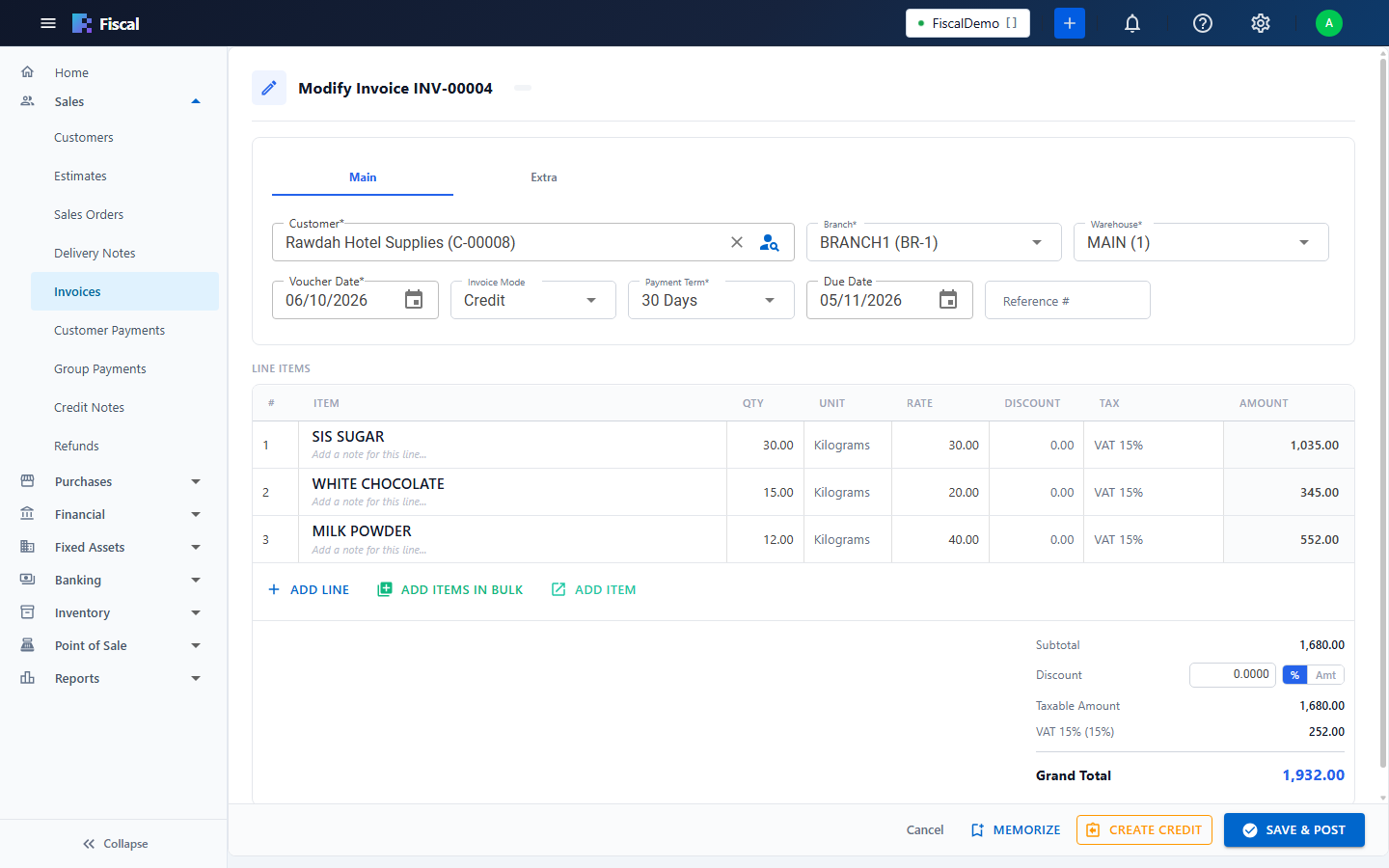
Add a line
- Click in the Item column and start typing the item's name or code. Pick it from the list.
- Choose the Unit if the item has more than one (see Units). The Rate changes to that unit's price.
- Enter the Qty. The In-Hand column shows how much stock the warehouse has.
- Check the Rate, and enter a Discount if there is one.
- The Tax comes from the item. The line Amount is worked out for you.
- Click Add Line for the next item.
Fiscal recalculates the totals as you type, and again on the server when you save. The saved figures are the ones that count.
Helpful extras on a line
- Previous prices: on sales documents, see the prices you charged this customer for the item before, next to the rate.
- Description and note: add a description to print under the item, and an internal note. Click Save this description for reuse to keep a description you use often. It then appears under Saved descriptions.
- Warehouse: each line normally uses the document's warehouse. If Allow Multiple Warehouses in a Transaction is on in Preferences, an invoice line can use another warehouse of the same branch.
- Batches: for batch items, choose the batches the stock comes from, or let Fiscal pick them according to the batch allocation settings.
Add many items at once
- Add Item opens a larger window for one item, with its stock, the price lists, the master price, and the customer's Sales History (click a row to use its rate).
- Add items in bulk opens Bulk Item Selection: search, click the items to put them in the basket, then Add Selected Items.
- Enter final amount: type each line's final amount, after the line discount and including tax, and Fiscal works out the rate. Useful when copying from a supplier's invoice.
Totals
| Line | What it is |
|---|---|
| Subtotal | The total of the lines before discounts. |
| Line Discounts | The total of the discounts on the lines. |
| Discount (% or Amt) | A discount on the whole document. Fiscal spreads it over the lines, so the VAT is calculated on the discounted amounts. |
| Taxable Amount | The amount VAT is calculated on. |
| Tax | The VAT, per tax template. |
| Round Off | Shown when round off is on in Preferences. |
| Grand Total | What the customer pays, or what you pay the vendor. |
Amounts are rounded to the decimal places set in Preferences.
Draft or posted
Most documents have two save buttons:
- Save as Draft: keeps the document without posting anything. Stock and accounts don't change. Use it for a document you will finish later.
- Save & Post (or Save & Deliver): saves the document and updates the stock and the accounts.
A document gets its number the first time it is saved, as a draft or posted.
Can't find what you need? Write to info@exlerithub.com or chat with us on WhatsApp.