
The dashboard
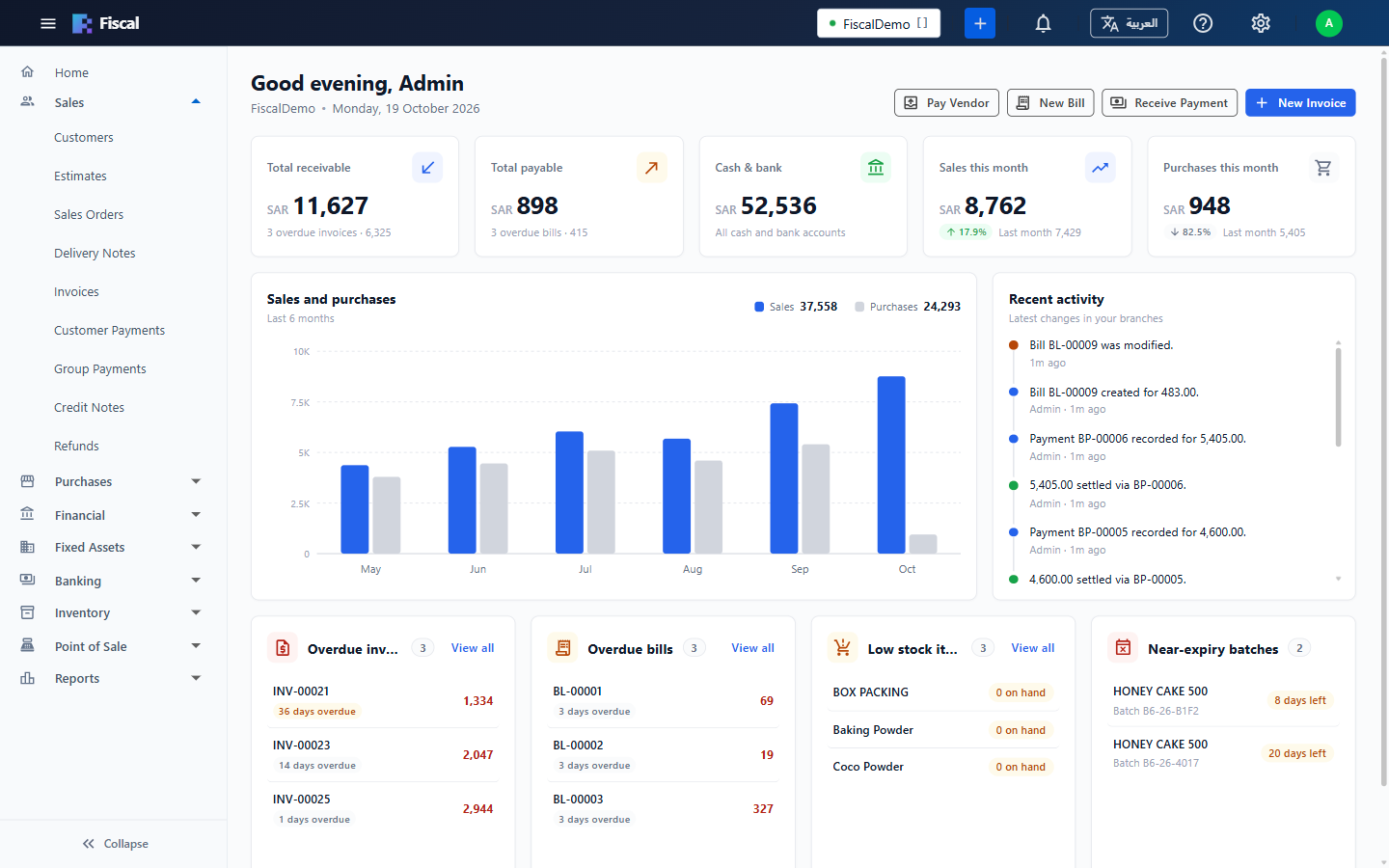
The dashboard is the first page you see after signing in. It shows how the business is doing today and what needs your attention.
Quick actions
The buttons at the top right start the most common tasks: New Invoice, Receive Payment, New Bill and Pay Vendor. You only see the buttons your user group is allowed to use.
Key figures
The row of cards gives the totals for the branches you have access to, in your base currency. Click a card to see the figures behind its amount in a popup.
| Card | What it shows | When you click it |
|---|---|---|
| Total receivable | What customers owe you: their open documents less unused credits and advances. It matches the Customer Balances report. | Each customer's balance, with Owed on documents and Unused credits. Click a customer to open them. |
| Total payable | What you owe vendors, worked out the same way. It matches the Vendor Balances report. | Each vendor's balance. Click a vendor to open them. |
| Cash & bank | The balance of your bank accounts and undeposited funds (cash received but not yet deposited). | Each account's balance. Click an account to open its ledger. |
| Sales this month | Posted invoices since the first of the month, including VAT. | The invoices, or By customer totals. Click an invoice to open it. |
| Purchases this month | Posted bills since the first of the month, including VAT. | The bills, or By vendor totals. Click a bill to open it. |
A negative balance in the receivable or payable popup is a credit or advance held for that customer or vendor. Open full report opens the full report behind a popup.
Trend and activity
- Sales and purchases: a chart of the last 6 months, so you can compare months at a glance.
- Recent activity: the latest documents added or changed in your branches.
Lists that need attention
- Overdue invoices: customer invoices past their due date, with the number of days overdue.
- Overdue bills: vendor bills past their due date.
- Low stock items: items below their reorder level.
- Near-expiry batches: batches that expire within the next 30 days (or have already expired), so you can sell or move them first.
- Transfers to accept: stock sent to your warehouses that hasn't been received yet.
Inventory view
Store keepers usually don't need sales and payment figures. If a user group's default landing page is /inventory, its users see the Inventory view of the dashboard instead: stock in and out over the last 6 months, stock in hand, low stock, near-expiry batches and transfers to accept, with the quick actions Items and Accept Transfers. See Default landing page.
Click Home at the top of the menu, or the Fiscal logo, to come back to the dashboard from anywhere.